Setup
Home Screen Process Flowchart
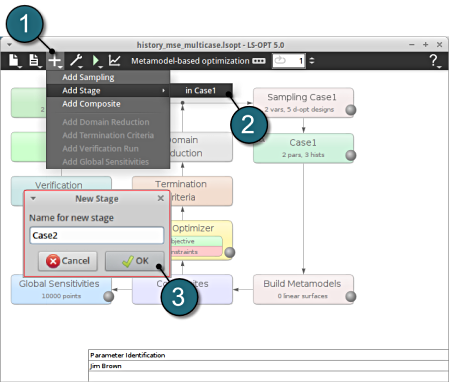
- To add a new Stage select the Add (denoted as +) at the task bar of the GUI.
- Select the Add Stage > in Case1 option. Another possibility to add a similar stage is to use the Clone option when right-clicking an already definied stage. This creates a new stage with the same definitions than the original stage, response and history names are replaced for uniqueness.
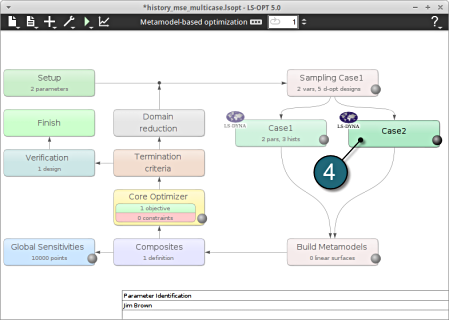
- Select a suitable name for the new stage e.g. Case2 and press OK . The main LS-OPT GUI includes a new Stage Case2 (see image below).
- Select the Case2 box.
A window Stage Case2 shall open.
Define Input File Name and Command
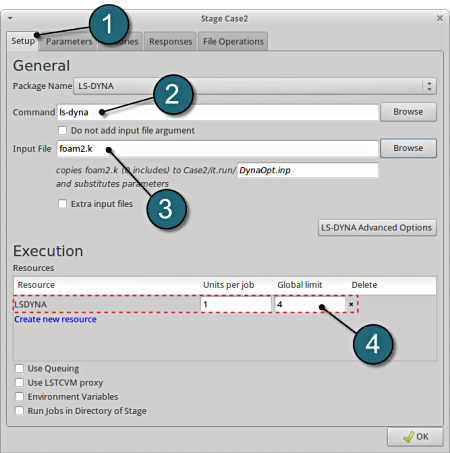
- Select the Setup tab.
- For Command specify the LS-DYNA executable ls-dyna (This name can be different on your computer). On Windows, the command has to be specified using the absolute path.
- For Input File browse for the parameterized file foam2.k. Parameters in LS-DYNA input files can be definied using *PARAMETER or the LS-OPT parameter format <<>>, see Parameters tab.
- For efficient usage of the computing power of the machine, choice on handling the number of concurrent jobs can be made suitably in this section. (E.g., if the machine has 4CPUs, and to run each job on a single CPU : Units per job = 1, Global limit = 4).
The parameters located in the selected Input File can be visualized in the adjoining tab Parameters.