Stages
https://www.lsoptsupport.com/examples/optimization/metal-forming/stage
https://www.lsoptsupport.com/@@site-logo/LS-Opt-Support-Logo480x80.png
Stages
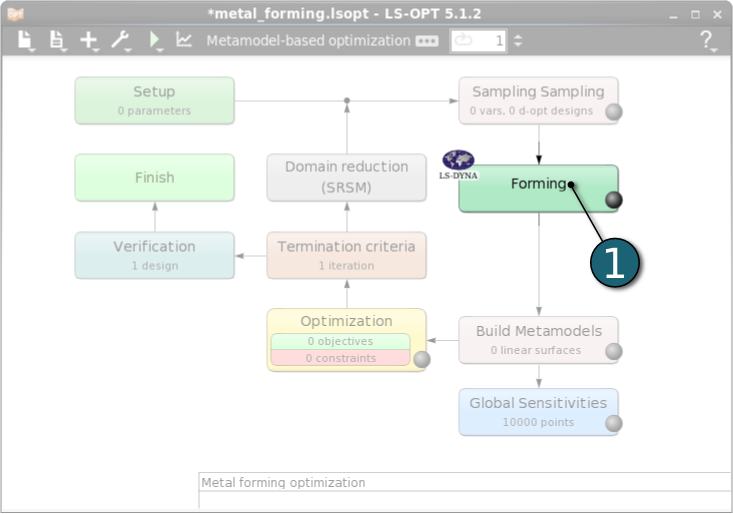
Home Screen Process Flowchart
- Double click on the Forming box to define the solver step in the simulation process.
The Stage dialog window shall open.
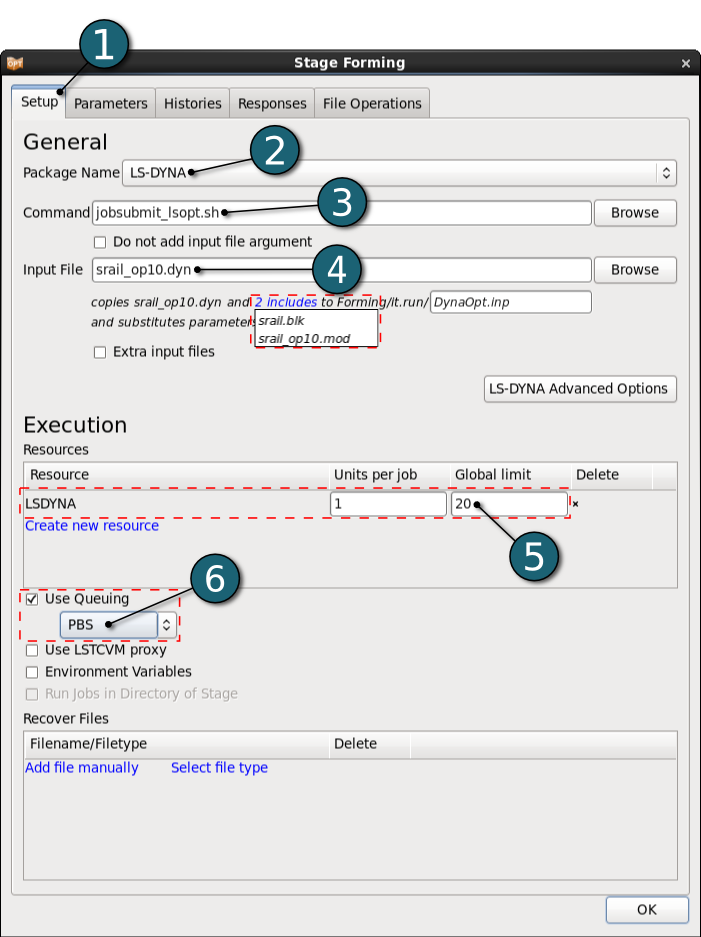
Define Stage Setup for Forming
- Select the Setup tab.
- Select the Package Name LS-DYNA.
- For Command specify jobsubmit_lsopt.sh (This is a script that submits the LS-DYNA jobs to a cluster and needs to be replaced by an appropriate command available on your system).
- For Input File browse the LS-DYNA keyword file srail_op10.dyn. Parameters are defined in this file using *PARAMETER keyword. LS-OPT parses this LS-DYNA keyword automatically for parameters and includes.
- For efficient usage of the computing power from the machine, choice on handling number of concurrent jobs can be made suitable in this section. For more details see FAQ resources.
- In case you run the LS-DYNA jobs on a cluster, activate Use Queuing and select the respective queuing system, e.g. PBS, for interfacing with load sharing facilities to enable running simulation jobs across a network.
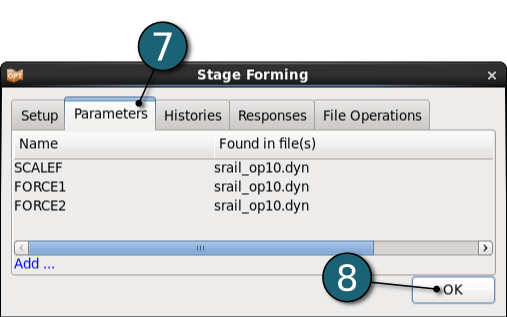
- The parameters defined in the selected Input File can be visualized in the adjoining tab Parameters.
- Since no histories or responses need to be extracted for this stage, click on the OK button to proceed.
Home Screen Process Flowchart
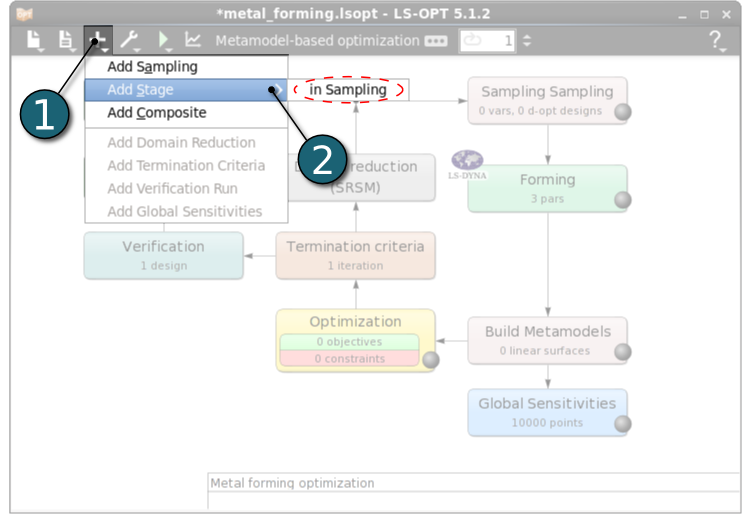
Add Stage
- Click on the Add menu in the control bar.
- Select Add Stage --> in Sampling Sampling for the second step Trimming in the metal forming process.
Enter Trimming as the Name for new stage.
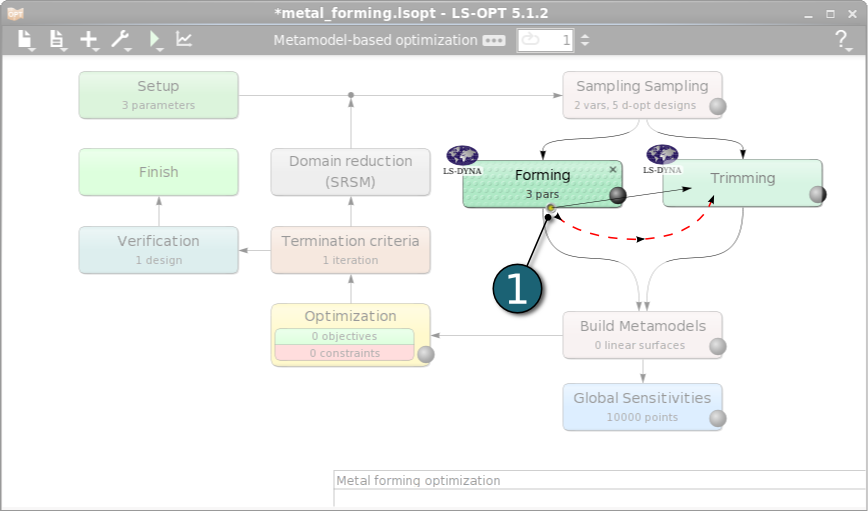
Dependencies of Stages
- The dependency of the stages is set by dragging the arrow head from the stage Forming to the stage Trimming.
- After connecting the two stages to each other we can re-position the stage Trimming for the sake of nice view of flowchart by dragging with simple left-mouse click, or use the Re-layout Stages option from the Tools menu.
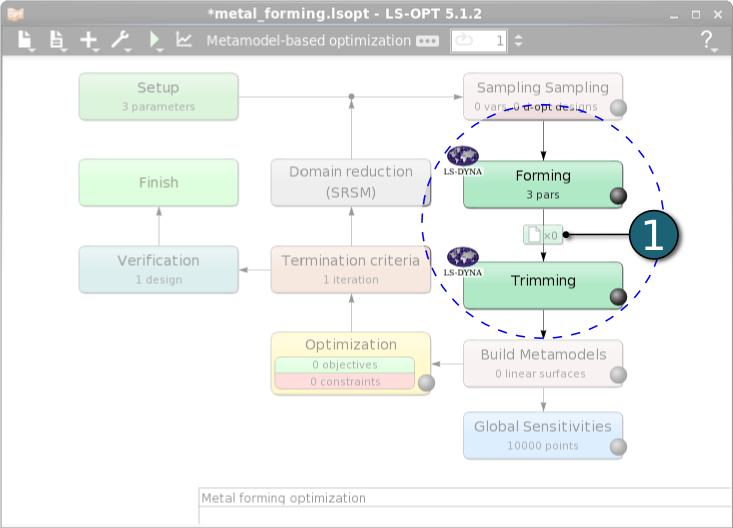
File Transfers
- Since the stage Trimming uses the output file of the stage Forming as an input file, the definition of a file transfer is necessary. Click on the File Transfers icon between the two stages. Another option to make the files available for the Trimming stage is to use the Run in directroy of stage option in the Stage dialog Setup tab.
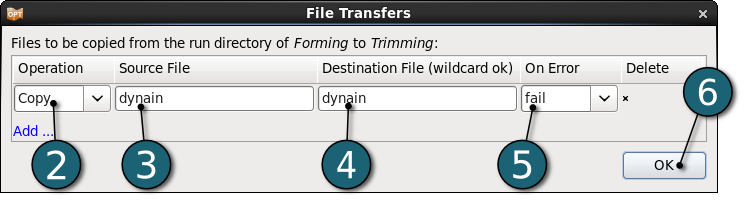
The File Transfers dialog will open.
- Select the file transfer Operation as Copy.
- Enter the name of the Source File, which is dynain in this case.
- Enter the name of the Destination File, which is dynain in this case, too.
- In the case the operations fails (on Error) select the operation to be applied as fail. The job will return an error termination and LS-OPT won't run the downstream stages for this sampling point.
- Click on the OK button to proceed.
Define Solver Setup for Trimming
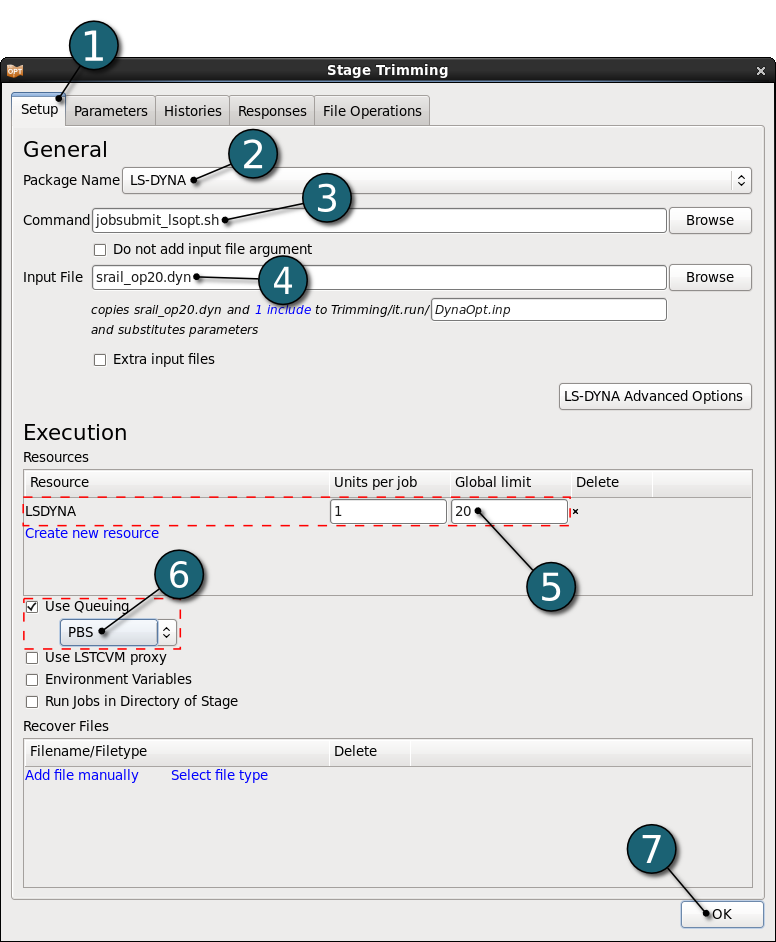
- Open the Trimming - Stage dialog as done for the previous Stage - Forming by double clicking on it. Then select the Setup tab.
- Select the Package Name LS-DYNA.
- For Command specify jobsubmit_lsopt.sh (This is a script that submits the LS-DYNA jobs to a cluster and needs to be replaced by an appropriate command available on your system).
- For Input File browse the LS-DYNA keyword file srail_op20.dyn.
- For efficient usage of the computing power from the machine, choice on handling number of concurrent jobs can be made suitable in this section. For more details see FAQ resources.
- In case you run the LS-DYNA jobs on a cluster, activate Use Queuing and select the respective queuing system, e.g. PBS, for interfacing with load sharing facilities to enable running simulation jobs across a network.
- Click on the OK button to proceed.
Home Screen Process Flowchart
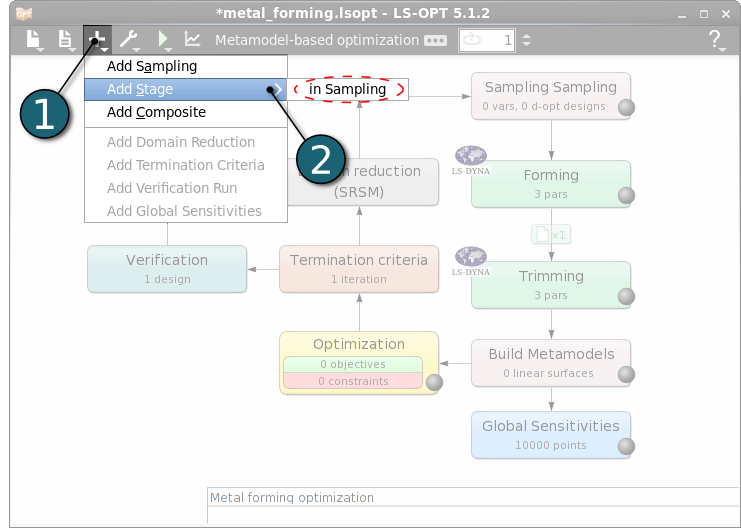
Add Stage
- Click on the Add menu in the control bar.
- Select Add Stage --> in Sampling Sampling for the third step Springback in the metal forming process.
Enter Springback as the Name for new stage.
Dependencies of Stages
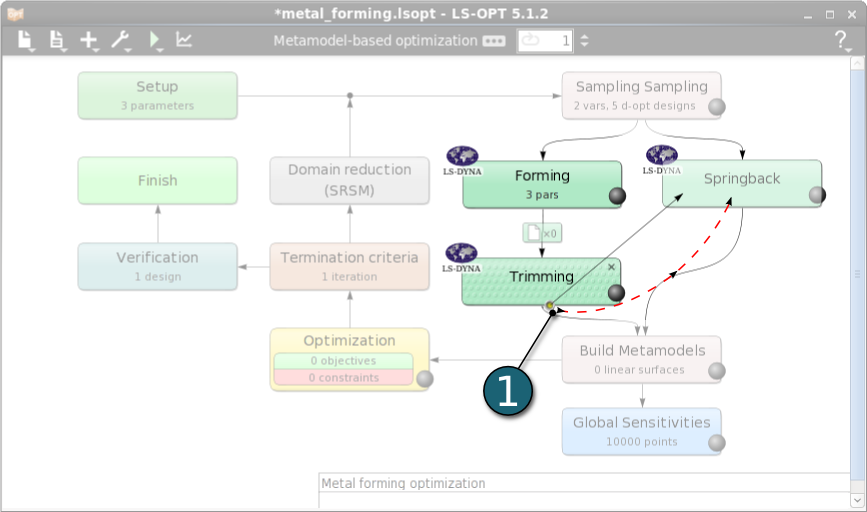
- The dependency of the stages is set by dragging the arrow head from the stage Trimming to the stage Springback.
- After connecting the two stages to each other we can re-position the stage Springback for the sake of nice view of flowchart by dragging with simple left-mouse click, or use the Re-layout Stages option from the Tools menu..
File Transfers
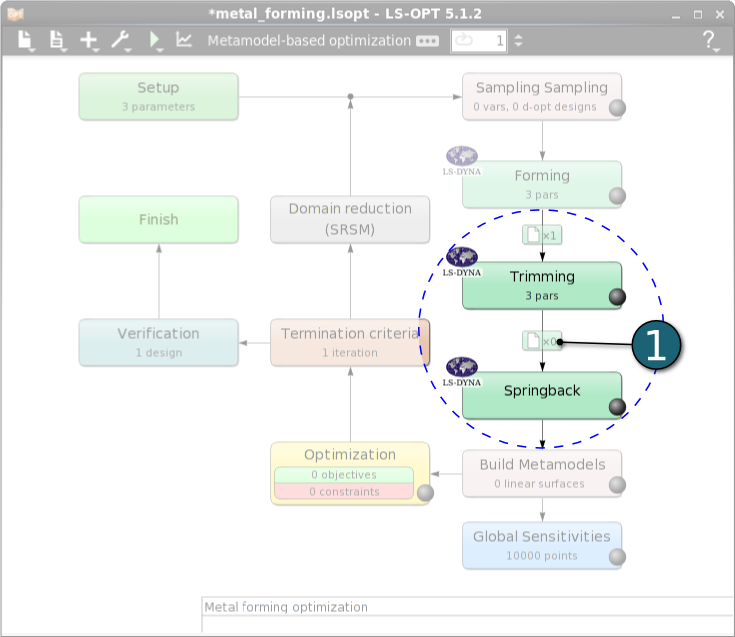
- Since the stage Springback uses the output file of the stage Trimming as an input file, the definition of a file transfer is necessary. Click on the File Transfers icon between the two stages. Another option to make the files available for the Timming stage is to use the Run in directroy of stage option in the Stage dialog Setup tab.
A File Transfers settings dialog will open.
- Select the file transfer Operation as Copy.
- Enter the name of the Source File, which is dynain in this case.
- Enter the name of the Destination File, which is dynain in this case, too.
- In the case the operations fails (on Error) select the operation to be applied as fail. The job will return an error termination and LS-OPT won't run the downstream stages for this sampling point.
- Click on the OK button to proceed.
Define Solver Setup for Springback
- Open the Springback - Stage dialog as done for the previous Stage - Forming by double clicking on it. Then select the Setup tab.
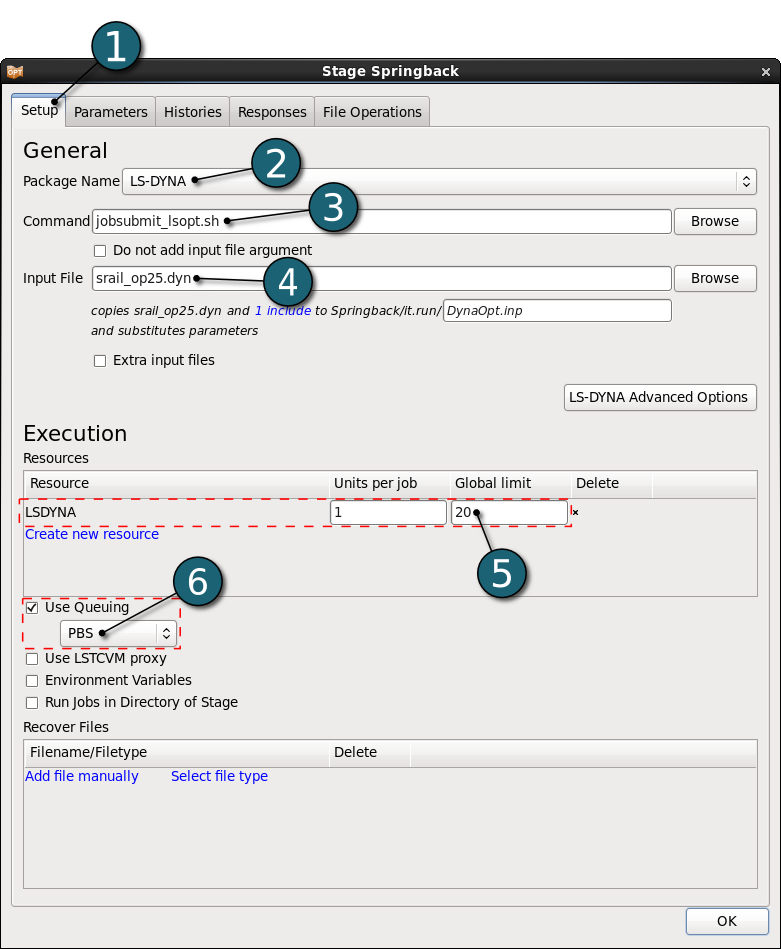
- Select the Package Name LS-DYNA.
- For Command specify jobsubmit_lsopt.sh (This is a script that submits the LS-DYNA jobs to a cluster and needs to be replaced by an appropriate command available on your system).
- For Input File browse the LS-DYNA keyword file srail_op25.dyn.
- For efficient usage of the computing power from the machine, choice on handling number of concurrent jobs can be made suitable in this section. For more details see FAQ resources.
- In case you run the LS-DYNA jobs on a cluster, activate Use Queuing and select the respective queuing system, e.g. PBS, for interfacing with load sharing facilities to enable running simulation jobs across a network.
Define Responses
Define springback
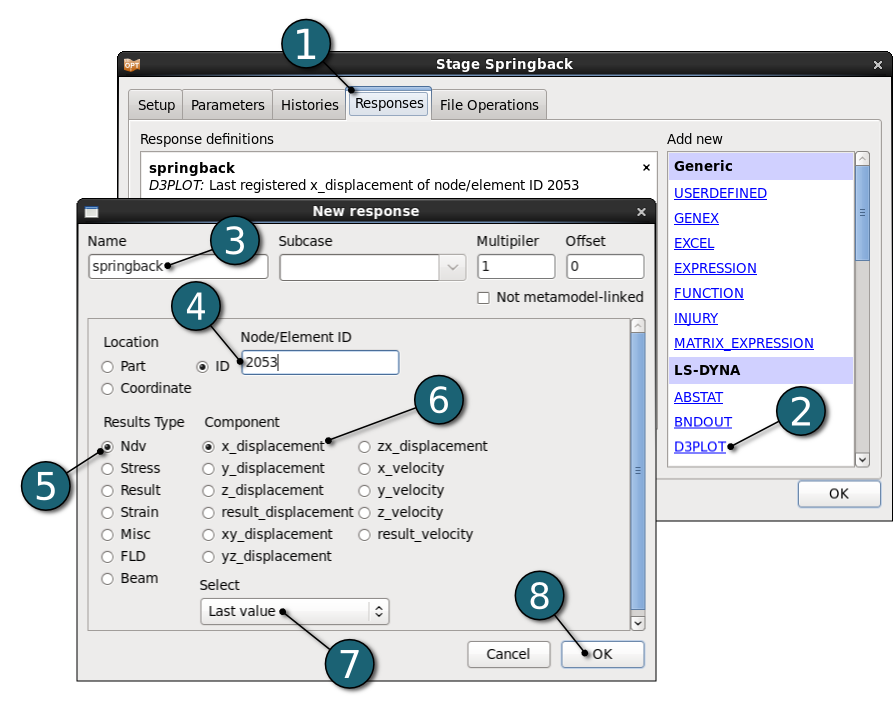
- Select the Responses tab.
- Select D3PLOT as the type of response which is produced by LS-DYNA simulation.
- Enter springback as the Name of the response.
- Select ID to specify the Location for the response and enter the Node ID 2053.
- Select the Result Type for this node as Ndv (Nodal Displacement, Velocity etc.).
- Select x_displacement as Component to observe springback in this direction.
- Select Last Value of the nodal displacement in x-direction to find out the resulting springback at the end.
- Click on the OK button to end the response definition.
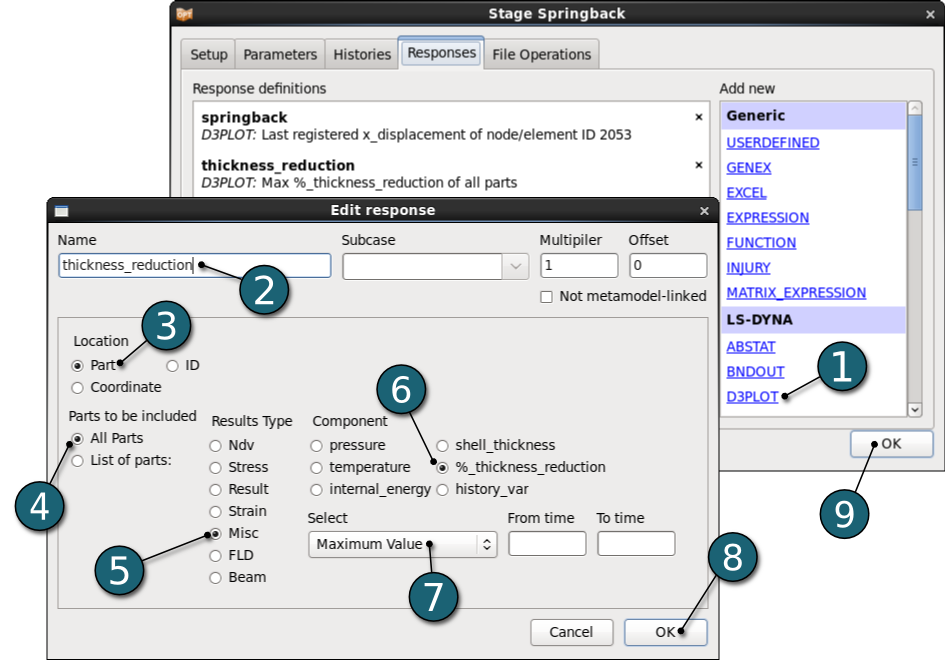
Define thickness_reduction
- Select D3PLOT as the type of response which is produced by LS-DYNA simulation.
- Enter thickness_reduction as the Name of the response.
- Select Part to specify the Location for the response.
- Select All Parts which are to be included in the response definition.
- As a Results Type select Misc. (Miscellaneous components).
- Select %_thickness_reduction as a Misc. Component.
- Select Maximum Value of the thickness reduction among all parts.
- Click on the OK button to end the response definition.
- Click on the OK button to proceed.